A thousand processes. About 55 apps.
Gauge counts every helper, renderer and background process with the app that started it, so you see which app is busy, not which Helper (Renderer). CPU, memory, energy, disk and network for each one, on a calm panel of dials that only turn amber or red when something is under strain.
Pay once · macOS 14+ · Apple silicon & Intel · No special permissions · Already bought? Download Gauge
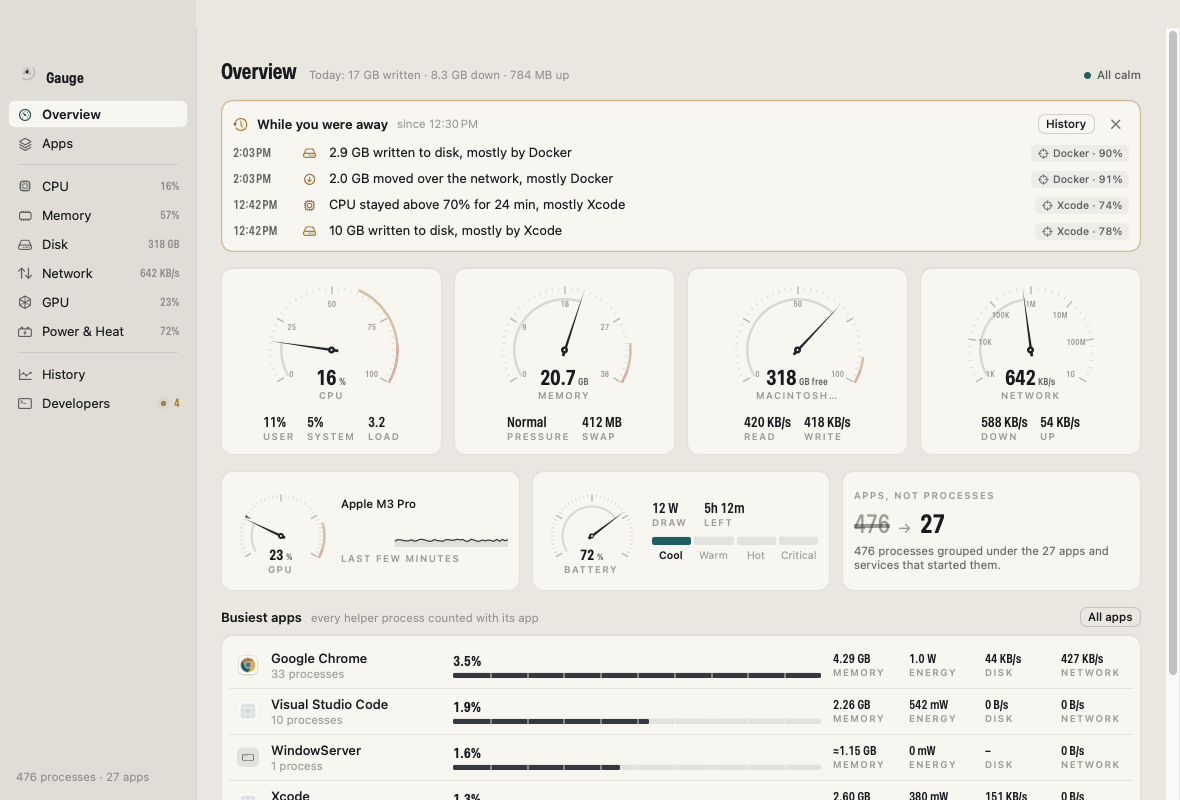
A working model, not a video — sample data. Every figure here is invented and moves on a timer: a web page can’t read your Mac’s processes, and this one doesn’t try. The pretend clock runs a minute a second, so Stress squeezes a busy afternoon into a few seconds. The shortcuts work without ⌘ here; P and S exist only in the model.
- Pay once, no subscription
- No account
- No special permissions
- Never quits anything without asking
- 14-day refund
Same Mac. A list you can read.
Activity Monitor gives each process its own row. A modern Mac runs about a thousand, and most are helpers with names like “Renderer” and “Plugin”. Gauge adds them up under the app they belong to.
Activity Monitor
1,014rows
- Google Chrome Helper (Renderer)0.4
- Google Chrome Helper (Renderer)0.3
- Code Helper (Plugin)0.3
- Google Chrome Helper (GPU)0.3
- com.apple.WebKit.WebContent0.2
- Google Chrome Helper (Renderer)0.2
- mdworker_shared0.1
- Code Helper (Renderer)0.1
- …and 1,006 more. You add up the helpers yourself.
Gauge
55apps
- Google Chrome33 processes3.5% · 4.29 GB
- Visual Studio Code10 processes, its terminals and the node they run1.9% · 2.26 GB
- Xcode3 processes, SourceKit included1.3% · 2.60 GB
- macOS servicesthe system’s own daemons, in one row1.2% · ≈4.47 GB
- …and 51 more, each with energy, disk and network too.
Counts and figures from a sample Mac; yours will differ. Activity Monitor still has things Gauge doesn’t: it’s free and built in, it can run system diagnostics, and it has a Cache pane for Content Caching. For a hanging app, Gauge gives you a ready-to-paste sample or spindump command.
Your Mac’s instrument panel, app by app.
Calm until it isn’t. Readings stay ink-on-grey until they’re worth a look, and you never have to guess which app is behind a number.
Apps, not processes
Chrome’s 33 helpers, VS Code’s terminals and the node they run, and Xcode’s SourceKit each count under their app, so one row tells the truth.
Five measures per app
CPU, memory footprint, energy (measured by macOS on Apple silicon), disk reads and writes, and network traffic. Sort by any of them, open an app to see every process.
An instrument panel
240° tick-marked dials with a needle and a peak-hold marker, a per-core bank, memory make-up and pressure, disk space, network speed, GPU use, battery health and the thermal state.
Calm until it isn’t
Amber when a reading is worth a look, red when it’s under strain, and no colour otherwise. You set the thresholds.
A year of history in a few megabytes
Today, Week, Month and Year charts, thinned to hourly as they age, in one small file with a hard size cap.
While you were away
CPU spikes, memory pressure, big writes and downloads, heat and fast battery drain, each with the app behind it: “CPU stayed above 70% for 24 min, mostly Xcode.”
Menu bar, your way
CPU, memory, network, heat, battery, disk and GPU as separate items, each a value, a graph or both, in the order you choose. Each opens a dropdown with the busiest apps.
Dev servers and Docker
Servers grouped by project with their ports, uptime and an “idle for 5 days” flag, and Docker containers alongside. “Stop…” always asks first.
Ask from Terminal or your AI tools
gauge status, gauge top, gauge servers --json and a read-only MCP server for Claude Code, Codex and Cursor.
Comparing system monitors? Read the guide: the best Activity Monitor alternatives for Mac
That server from last week? Still running.
Gauge finds the dev servers you left listening, groups them by project folder and flags the ones that haven’t done anything for days. Stopping one sends the same polite signal as Ctrl-C, and only after you confirm.
The gauge command and the MCP server can read everything the app shows, but they can’t quit or stop anything. An AI assistant can tell you a server has been idle for five days; only you can stop it.
$ gauge servers
atlas-api  ~/code/atlas-api
  python    :8000           pid 51022
atlas-web  ~/code/atlas-web
  node      :5173           pid 48211
marketing-site  ~/code/marketing-site
  node      :3000           pid 39150  idle 5 days

$ gauge stop 39150
gauge is read-only. Open Gauge to stop a server or
quit an app — it shows what will happen and asks first.
What it can’t see, it says so.
Gauge shows only what macOS’s public interfaces report. Where a figure isn’t available, you get “–” or a labelled estimate, never a guess dressed up as a reading.
That’s also why it needs no helper tool, no administrator password and no Full Disk Access.
- No temperatures or fan speedsmacOS doesn’t give apps exact temperatures, so Gauge shows its thermal state: Cool, Warm, Hot or Critical.
- No per-app GPU or Neural EngineGPU use is shown for the whole Mac. There’s no public way to see Neural Engine use.
- macOS’s own processes, partlyFor processes owned by the system, Gauge sees CPU and resident memory (marked “≈”) but not disk or energy (shown as “–”).
- Energy on Intel is an estimateIntel Macs that don’t report energy get a figure worked out from CPU use, labelled as one.
Every screen, light and dark.
Screenshots straight from Gauge, with sample apps and history. Flip between light and dark.


What stays. What connects.
Gauge reads what macOS already shares with every app: process lists, your own processes’ counters, disk and network byte counts, and the standard ps, nettop and lsof tools.
Stays on your Mac
Everything Gauge reads and remembers.
- ✓Your apps and processesNames, figures and ports, read locally and never sent
- ✓HistoryOne SQLite file in your Library folder, capped at the size you choose
- ✓Project names and containersShown in the app, kept on your Mac
- ✓The
gaugecommand and MCP serverRun on your Mac and only read. They answer the AI tool you connect, nothing else - ✓How you use itNo account, no analytics or tracking in the app
Connects
Two small requests, over HTTPS.
- 1License checkYour key and an activation ID, to Dodo Payments
- 2Update checkApp name and version, to
gauge.newmac.app
The full list, for every app, is in the privacy policy.
Pay once. Keep it.
One payment, no subscription. Choose how many Macs you’ll use Gauge on.
3 Macs
For your home and work Macs
Checkout opens soon. The buttons above go live here the moment it does.
Every plan includes
- One payment, no subscriptionEvery feature, yours to keep.
- License key by emailSent the moment you pay. Activate in one click.
- Move between MacsUse “Deactivate this Mac”, then activate on the new one.
- Free updatesNew versions install themselves.
- 14-day refundNot for you? Read the refund policy.
- macOS 14 or laterNative on Apple silicon & Intel.
Already bought? Download Gauge · .zip · Install help
Questions, answered.
How is Gauge different from Activity Monitor?
Activity Monitor lists every process on its own row, about a thousand on a busy Mac. Gauge counts each helper, renderer and child process with the app that started it, so you get about 55 rows with CPU, memory, energy, disk and network for each. It also keeps up to a year of history, tells you what happened while you were away, puts separate readings in the menu bar and finds your dev servers. Activity Monitor is free and built in, and still the place to run system diagnostics.
Which permissions does Gauge ask for?
None. There’s no helper tool, no administrator password, no Full Disk Access and no Accessibility access. Gauge reads what macOS already shares with every app: process lists, your own processes’ counters, network and disk byte counts, and the standard ps, nettop and lsof tools.
Is anything not measured?
Yes, and Gauge says so where it happens. macOS doesn’t give apps exact temperatures, fan speeds, Neural Engine use or per-app GPU time, so Gauge shows the thermal state (Cool, Warm, Hot, Critical) and whole-Mac GPU use instead. For processes owned by macOS itself, it sees CPU and resident memory but not disk or energy; those figures are marked “≈” or shown as “–” rather than guessed. On Intel Macs that don’t report energy, the energy figure is an estimate from CPU use and is labelled as one.
Will Gauge quit or stop things on its own?
Never. Quit, Force Quit and Stop always show what will happen and wait for you to confirm. The gauge command and the MCP server are read-only: an AI assistant can tell you a server has been idle for days, but it can’t stop it.
Does anything leave my Mac?
No. History, project names and app data stay in one SQLite file in your Library folder. Gauge has no account and no analytics. The only network requests are the license check and the update check.
Does Gauge slow my Mac down?
No. With its window closed, Gauge reads the Mac every 5 seconds and uses about half a percent of one core, including its ps and nettop runs, and about 30 MB of memory. It reads more often only while you’re looking. A year of history usually takes 5–15 MB, and you can cap the file at 16 to 128 MB.
Does it track my AI plan or token usage?
No. That’s what our app Tally does: it tracks Claude Code and Codex sessions and tokens alongside your screen time. Gauge watches the Mac itself.
What doesn’t it do?
It doesn’t control fans, clean caches, change per-app volume, show Bluetooth device batteries or sync between Macs. It never kills anything automatically. If you want to know why your Mac woke up overnight, that’s Nightwatch.
What do I need?
macOS 14 Sonoma or later, on Apple silicon or Intel. Docker figures need the docker command from Docker Desktop, OrbStack, Colima or Rancher Desktop.
macOS says it can’t verify the developer.
Gauge is distributed directly from this website. Here’s how to open it the first time.
Is there a free trial?
No. Use the working model at the top of this page to see exactly how Gauge works. If it turns out not to be for you, you can ask for a refund within 14 days — see the refund policy.
Can I use Gauge on more than one Mac?
Yes. The 3-Mac and 5-Mac plans cover several Macs with one license key. Any license can move to a new Mac: choose “Deactivate this Mac” in Gauge on the old one, then activate on the new one.

See which app it is, not which helper.
About a thousand processes, folded into the apps you know, on a panel that stays calm until something needs you. Pay once and keep it.